
If you’ve moved your WordPress website to a new host you might find that links do not work when you try to browse around your website.
For me, the homepage loaded but when I tried to navigate to other pages and posts I kept on seeing a 404 page not found error.
Step 1 – Permalinks
The first thing to do is check your permalinks settings.
Login to your WordPress dashboard /yoursite.com/wp-admin.
On the left hand side hit Settings.
Then Permalinks.
Don’t change anything on this page, just go to the bottom of the page hit Save Changes.
This may have fixed your problem, refresh and browse your site to see if it has. if not do step 2.
Step 2 – Update the .htaccess file
Log into your hosting service.
Go to the File Manager.
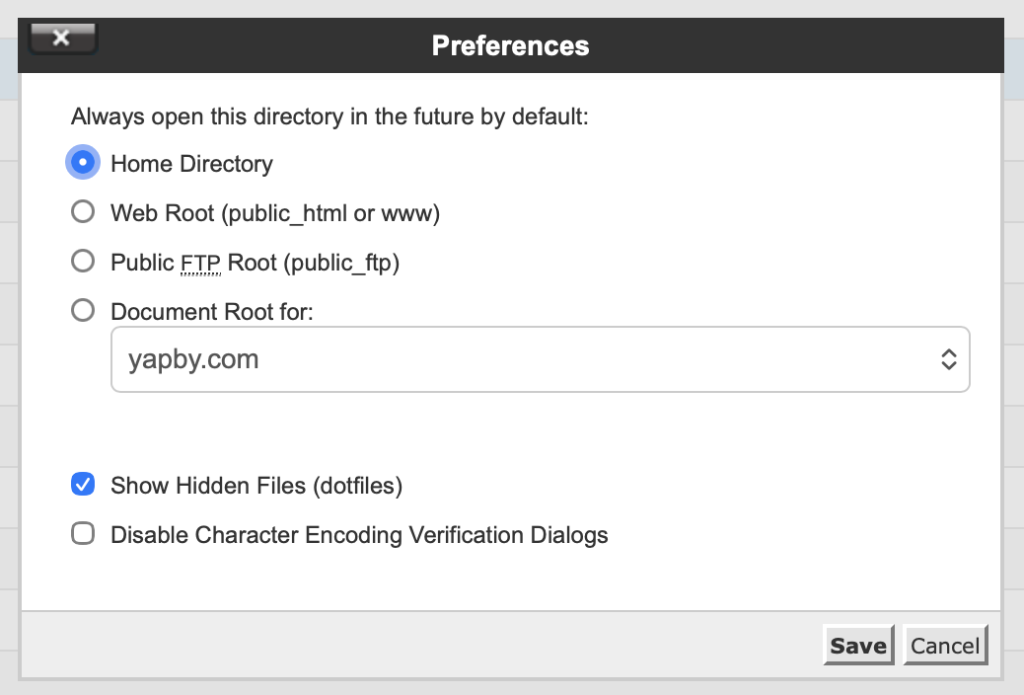
Find the file .htaccess in the /Public_html/ directory and open to edit. If you don’t see it it may be hidden. Within the file manager look at the top righthand corner and click settings.
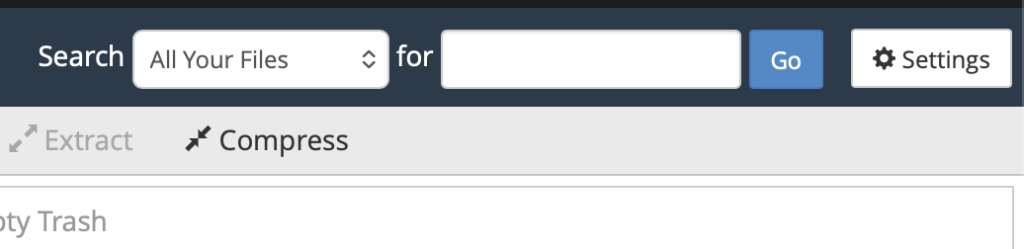
In the pop up window you’ll see Show Hidden Files. Make sure this has a Tick next to it and then Save.
If you’ve done the above and you still can’t see the file then you may not have one. You can add your own.
Make sure you’re in the /Public_html/ directory. In the top lefthand corner hit File and then enter the name .htaccess then hit Create New File.
Open the new .htaccess file and add the following code and then save. Once done all links should work.
# BEGIN WordPress

RewriteEngine On
RewriteRule .* - [E=HTTP_AUTHORIZATION:%{HTTP:Authorization}]
RewriteBase /
RewriteRule ^index\.php$ - [L]
RewriteCond %{REQUEST_FILENAME} !-f
RewriteCond %{REQUEST_FILENAME} !-d
RewriteRule . /index.php [L]

# END WordPress